What Makes a Good Modal (Dialog) Implementation?
What Is a Modal (Dialog)?
Hello, I'm frontend developer Jeonguk Nam.
In this post, I’d like to share the thought process I went through while exploring better ways to implement modals.
A modal (dialog) is a window that provides information to the user or requests input.

Even if you don’t know the exact terminology of dialog or modal, you’ve probably seen components like the one above at least once.
Dialogs and modals are used frequently throughout web applications, but from a developer’s perspective, they are surprisingly complex components to implement well.
Dialog Code Hell
Z-index Hell and DOM Hierarchy Issues
Logically, a modal should appear at the very top of the visual layer. However, if you declare a modal inside a component, it can be affected by the parent’s z-index or overflow: hidden styles. This results in stacking context issues where the modal gets clipped or hidden behind other elements.
To solve this, React typically uses createPortal to render the modal outside the normal DOM tree (usually directly under the body tag).
Fragmented State Management
This is a problem that arises when implementing modals in the most common declarative style. To control a single modal, each component needs its own state like const [isOpen, setIsOpen] = useState(false).
What if a page has three or four different types of modals? The state variables and handler functions for opening and closing each modal quickly fill up the component where business logic should live.
const [isModal1Open, setIsModal1Open] = useState(false);
const [isModal2Open, setIsModal2Open] = useState(false);
const [isModal3Open, setIsModal3Open] = useState(false);
const [isModal4Open, setIsModal4Open] = useState(false);
Web Accessibility (a11y) and Detailed UX Handling
Beyond visual design, taking care of invisible usability is the trickiest part.
Focus trap: When navigating with the Tab key, focus must not escape outside the modal to background elements.
Scroll lock: While the modal is open, the background content should not scroll.
Various close actions: In addition to a clear close button for screen reader users, supporting ESC key presses and clicking on the dimmed/backdrop area to close the modal is also essential.
When you try to handle all these edge cases manually, the codebase quickly grows out of control.
So, what is a good way to implement all of this?
As I wrestled with these issues, I started to ask, “How can I build a modal that is friendly to users, compliant with web standards, and doesn’t destroy developer experience (DX)?”
In this article, I’ll share two approaches that helped me answer this question: The first is a semantic approach using native HTML5 features, and the second is an architectural approach to tame complex state management.
First Solution: The Magic of the HTML5 <dialog> Tag (Semantic Approach)
In the past, to display a modal, we had to stack multiple <div> elements and manually add accessibility attributes like role="dialog" and aria-modal="true". On top of that, we usually wrote a bunch of useEffect logic to lock the scroll and trap focus.
Now, with the native HTML5 <dialog> tag, we can delegate many of these complex tasks directly to the browser in a much more elegant way.
MDN dialog has a detailed explanation if you’d like to dive deeper.
1. Escaping Z-index Hell With the Top Layer
When we declare a modal inside a component, it can get trapped by the parent’s overflow: hidden or z-index, causing it to be clipped. That’s why we’ve often resorted to using createPortal to forcibly move the rendering position outside the normal DOM tree (usually directly under body).
However, when you open a dialog element using the JavaScript showModal() method, the browser renders it on a special Top Layer it manages internally. This means the modal is no longer affected by the parent’s CSS and reliably appears at the very top of the visual stack. No more createPortal hacks or sprinkling z-index: 9999 everywhere.
2. Accessibility and UX “For Free”
The biggest benefit of a native tag is that the browser provides solid accessibility (a11y) and UX behavior for free.
- Close with ESC: Even without manually adding keyboard event listeners, pressing
ESCnaturally closes the modal. - Focus trap: A modal opened via
showModal()automatically captures focus, ensuring that Tab navigation doesn’t escape to elements behind the modal. - Easy backdrop styling: You no longer need a separate
<div>just to dim the background. You can style the dedicated::backdroppseudo-element for thedialogtag with pure CSS.
3. Code Comparison: How Much Cleaner Does It Get?
The difference becomes even clearer when you compare the traditional approach with the <dialog>-based approach.
❌ Old, Complex Approach (Nested divs and endless useEffects)
import React, { useEffect, useRef } from 'react';
import { createPortal } from 'react-dom';

const TraditionalModal = ({ isOpen, onClose, children }) => {
  const modalRef = useRef(null);

  useEffect(() => {
    if (!isOpen) return;

    // 1. Scroll lock
    const originalStyle = window.getComputedStyle(document.body).overflow;
    document.body.style.overflow = 'hidden';

    // 2. a11y: Close on ESC
    const handleKeyDown = (e) => {
      if (e.key === 'Escape') onClose();
    };
    window.addEventListener('keydown', handleKeyDown);

    // 3. Force focus into the modal
    if (modalRef.current) {
      modalRef.current.focus();
    }

    // Cleanup
    return () => {
      document.body.style.overflow = originalStyle;
      window.removeEventListener('keydown', handleKeyDown);
    };
  }, [isOpen, onClose]);

  if (!isOpen) return null;

  // 4. Close when clicking on the backdrop
  const handleBackdropClick = (e) => {
    if (e.target === e.currentTarget) onClose();
  };

  // 5. Render with createPortal
  return createPortal(
    <div className='fixed inset-0 z-50 flex items-center justify-center bg-black bg-opacity-50' onClick={handleBackdropClick}>
      <div className='bg-white p-6 rounded-lg shadow-xl' role='dialog' aria-modal='true' tabIndex={-1} ref={modalRef}>
        {children}
        <button onClick={onClose} className='absolute top-2 right-2'>
          ✕
        </button>
      </div>
    </div>,
    document.body,
  );
};

export default TraditionalModal;
✅ Elegant Approach With the <dialog> Tag
import { useEffect, useRef } from 'react';

interface DialogProps {
  isOpen: boolean;
  onClose: () => void;
  children: React.ReactNode;
}

const NativeDialog = ({ isOpen, onClose, children }: DialogProps) => {
  const dialogRef = useRef<HTMLDialogElement>(null);

  useEffect(() => {
    const dialog = dialogRef.current;
    if (!dialog) return;

    if (isOpen) {
      dialog.showModal(); // Renders on the Top Layer, automatically handles focus trap and backdrop
    } else {
      dialog.close();
    }
  }, [isOpen]);

  return (
    <dialog
      ref={dialogRef}
      onClose={onClose} // Needed to sync React state when the browser closes the dialog via ESC, etc.
      className='p-6 rounded-lg shadow-xl backdrop:bg-black backdrop:bg-opacity-50'
    >
      {children}
      <button onClick={onClose} className='absolute top-2 right-2'>
        ✕
      </button>
    </dialog>
  );
};

export default NativeDialog;
4. The Only Drawback of <dialog>? Solving the Animation Problem
<dialog> looks almost perfect, but there’s one big hurdle when you try to use it in a real product: it’s surprisingly tricky to apply smooth animations like fade-in.
Why is that? When a <dialog> is closed, the browser treats it as display: none. And CSS transitions don’t run when an element goes directly from display: none to display: block.
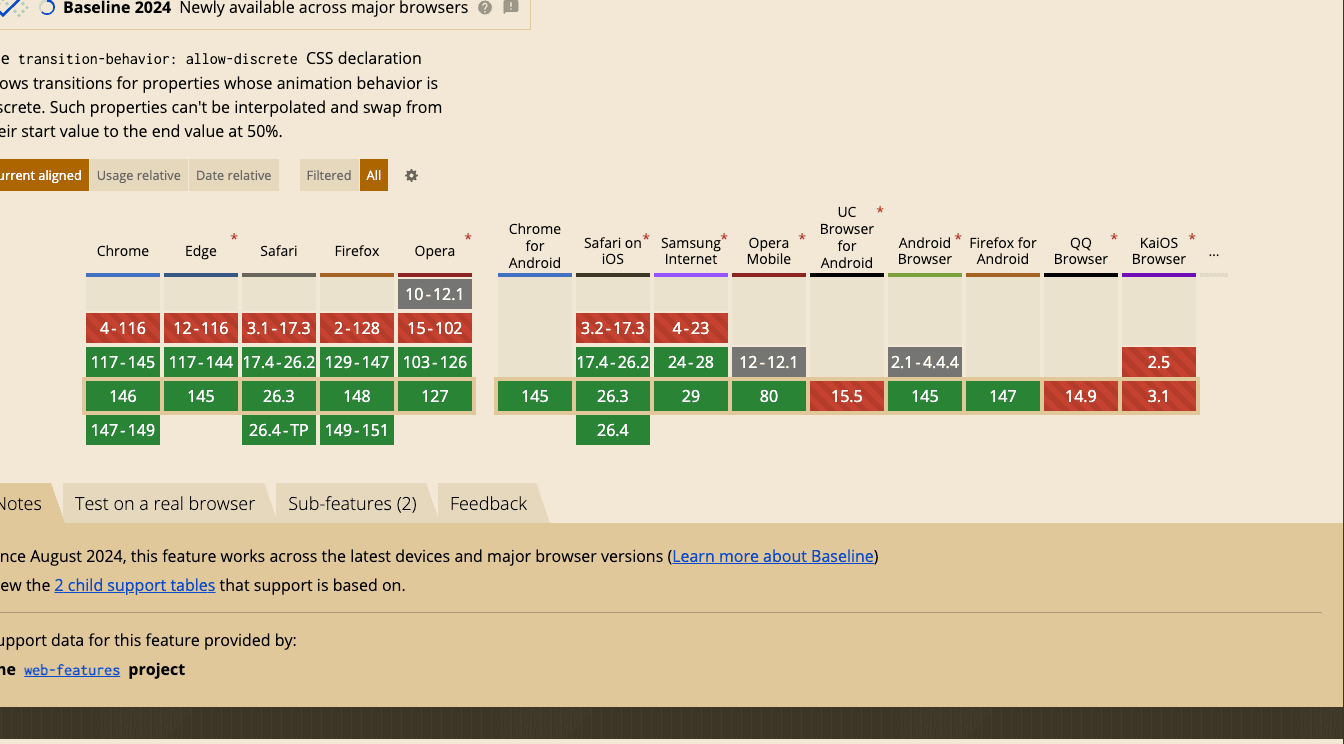
However, with recent additions to the CSS spec, we can solve this problem in a clean, purely CSS-based way—no JavaScript hacks required. The core features are @starting-style and allow-discrete.
Elegant Modal Animations With Modern CSS
The following CSS makes the modal smoothly animate both when opening and closing.
/* 1. Base (target) state when the modal is closed */
dialog {
  opacity: 0;
  transform: translateY(20px);
  /* New CSS: allow animations on display and overlay via allow-discrete */
  transition:
    opacity 0.3s ease,
    transform 0.3s ease,
    overlay 0.3s allow-discrete,
    display 0.3s allow-discrete;
}

/* 2. State when the modal is open */
dialog[open] {
  opacity: 1;
  transform: translateY(0);
}

/* 3. Starting point when the modal is just beginning to open (@starting-style) */
@starting-style {
  dialog[open] {
    opacity: 0;
    transform: translateY(20px);
  }
}

/* -------------------------------------- */
/* Bonus: Backdrop fade-in animation      */
/* -------------------------------------- */
dialog::backdrop {
  background-color: rgba(0, 0, 0, 0);
  transition:
    background-color 0.3s ease,
    overlay 0.3s allow-discrete,
    display 0.3s allow-discrete;
}

dialog[open]::backdrop {
  background-color: rgba(0, 0, 0, 0.5);
}

@starting-style {
  dialog[open]::backdrop {
    background-color: rgba(0, 0, 0, 0);
  }
}
The only caveat is that @starting-style is a relatively new CSS feature, so it is not yet supported in some older browser versions.
Because of this, you’ll need to choose the right implementation strategy based on the primary browsers your product users rely on.
In the next post, I plan to cover an architectural approach for managing the state of multiple modals scattered across a page.
To be continued...